Termux File System Explained: Complete Guide for Beginners
If you’ve just installed Termux on your Android device, you might be feeling a bit lost. You type ls to look around, you see an empty screen, and when you try to copy files to your phone’s storage, you get slapped with a frustrating “Permission Denied” error.
Where are your files actually hiding? How do you move things back and forth?
Unlike a standard Linux desktop environment, the Termux file system operates inside a highly secure, sandboxed Android partition. To master this environment, you need to understand how its directories are laid out and how to connect it to your phone’s storage.
This beginner-friendly guide breaks down the entire structure of the termux file system, explains the absolute paths, and gives you step-by-step commands to handle storage like a pro.
1. Where Are Termux Files Stored? (The Linux Sandbox)
Because Android isolates every app for security, Termux cannot simply install packages directly into your root folder (/). Instead, it builds an entirely independent Linux environment inside its own dedicated storage block.
The absolute termux internal storage path is:
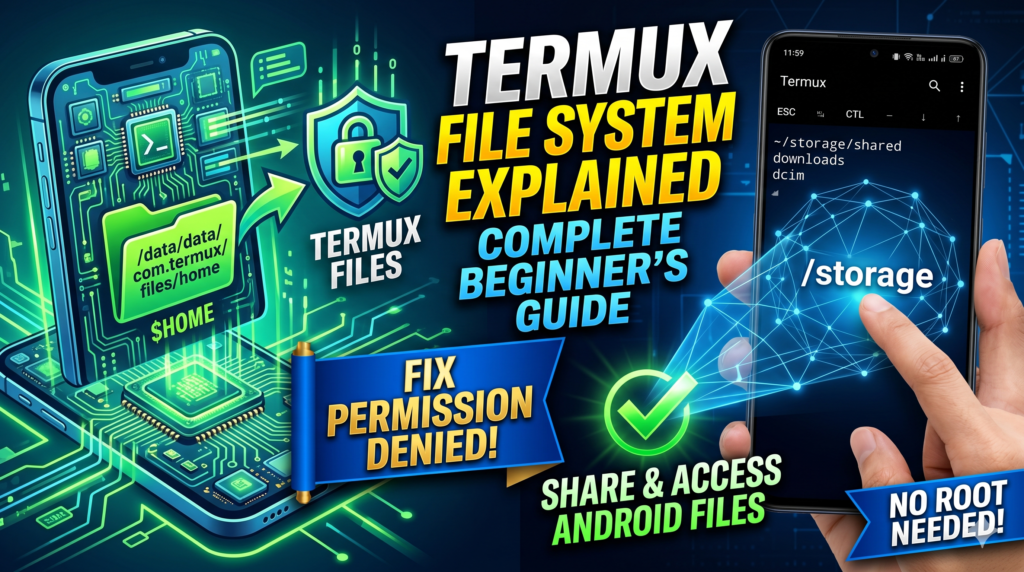
/data/data/com.termux/files/
Unless your Android device is rooted, you cannot navigate to this path using standard apps like Google Files or Samsung My Files. It is completely invisible to third-party tools.
Inside this private directory, Termux splits your system into two main areas using Linux environment variables. Think of it as a house: $HOME is your living room, and $PREFIX is your tool shed.
| Environment Variable | Equivalent Absolute Path | What is it used for? |
$HOME (or ~) | /data/data/com.termux/files/home | Your primary workspace. This is where your custom terminal scripts, cloned git repositories, and downloaded files live. |
$PREFIX | /data/data/com.termux/files/usr | The app’s engine. This contains your installed packages (bin), dependencies (lib), configuration files (etc), and basic tools. |
2. Step-by-Step: Connect Termux to Android Shared Storage
To solve the “Permission Denied” error and access files like photos, videos, and downloads on your phone, you must initialize the termux-setup-storage utility. This links your isolated app profile directly to your phone’s main storage card (/storage/emulated/0).
Follow this quick process to build the bridge:
1.Trigger the Setup Utility:Takes 2 seconds.
Open your Termux terminal app, type the following command precisely, and press Enter:
https://h4ck3r.me/how-to-setup-storage-in-termux/
termux-setup-storage
2.Grant Android System Access:On-screen prompt.
A native system window will pop up asking for storage permissions. Tap Allow or Grant. (Note: If you run Android 11 or newer, you may need to toggle ‘Allow access to manage all files’ in your phone’s App settings for Termux).
3.Verify the Storage Link:Directory check.
Type ls in your terminal. You will see a brand new folder named storage inside your home path. Switch to it by typing:
cd ~/storage && ls
Once inside ~/storage, you will see several symbolic links (shortcuts) leading to your real internal folders:
~/storage/shared: The direct root directory of your device’s internal storage.~/storage/downloads: Straight access to your phone’s Downloads folder.~/storage/dcim: Access to your camera roll and photos.
3. How to Copy and Move Files Between Android and Termux
Now that the storage paths are properly linked, you can use traditional Linux command lines to transfer files between your phone’s user environment and your isolated terminal environment.
Scenario A: Move a file from Android Downloads into Termux
If you downloaded a script (script.py) via Chrome and want to run it in your Termux workspace:
https://h4ck3r.me/how-to-and-use-nano-text-editor-in-termux
cp ~/storage/downloads/script.py $HOME/
Scenario B: Copy a file from Termux to your phone’s storage
If your Termux program compiled a compressed backup (backup.zip) and you want to save it to your phone’s standard storage so you can email it:
Bash
cp $HOME/backup.zip ~/storage/shared/Documents/
4. Pro Tip: View Termux Files via a Visual File Manager App
Sometimes, managing text files via the command-line interface becomes tedious. If you prefer a visual user interface, you can expose the hidden Termux folder to a standard Android explorer using Android’s Storage Access Framework (SAF).
- Download a free file manager that supports SAF (like Material Files or MiXplorer).
- Open the file manager, open the sidebar, and click Add Storage Location or Add Connection.
- Choose Termux from the native Android system folder menu picker.
- Approve the path mount. You can now visually drag, drop, edit, and organize files inside
/data/data/com.termux/files/homedirectly from your touchscreen!
Frequently Asked Questions
Where is the termux root directory?
Termux does not feature a traditional Linux root folder (/) because it operates on a standard device without administrative privileges. Instead, it utilizes its own directory ($PREFIX) to mimic system folders.
https://h4ck3r.me/termux-root-access-guide-by-h4ck3r/
Why do I get a “Permission Denied” error when trying to run a file on /sdcard?
Android forces a security policy called noexec on your phone’s shared internal memory storage blocks. This means you cannot run scripts or binary code directly out of your phone’s main storage directory or an SD card. To execute scripts or files, you must move them into your actual native local directory path ($HOME) first.